
TABLE OF CONTENTS
Overview
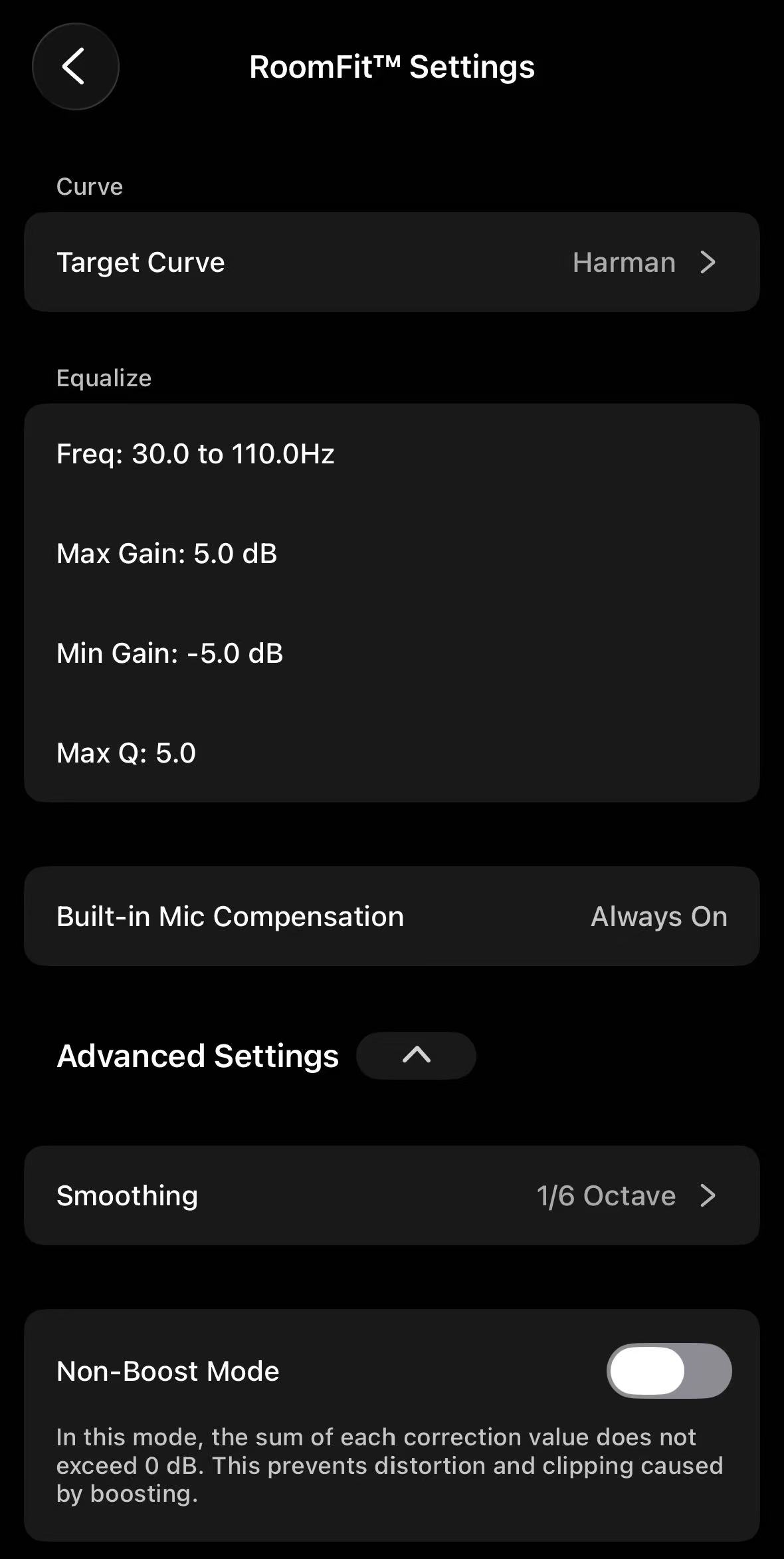
RoomFit™ provides a range of parameters to tailor frequency-response correction to your listening preferences. This article explains what each RoomFit™ parameter does.
Access RoomFit™ Settings
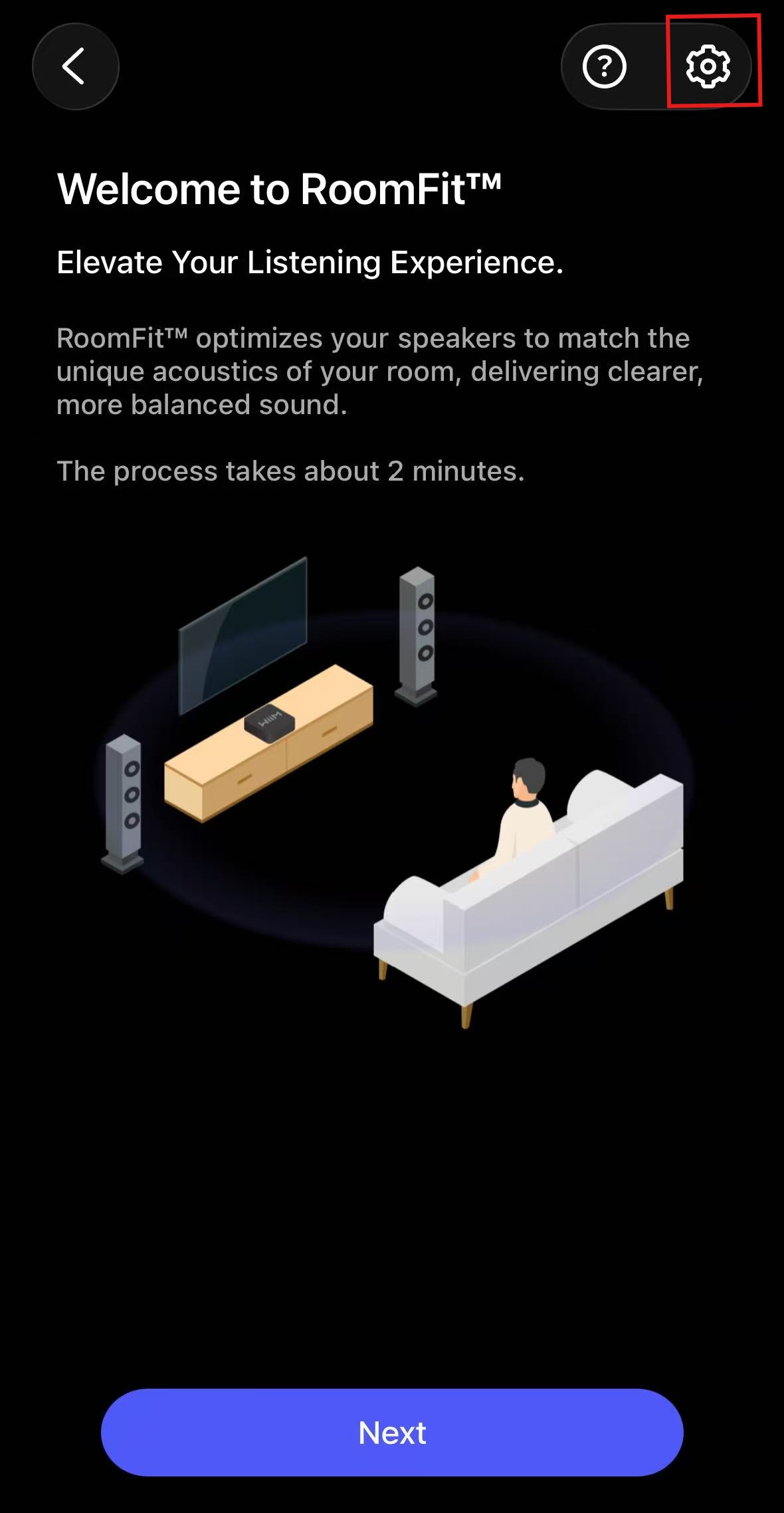
On the RoomFit™ start screen, tap the Settings icon in the upper-right corner to configure the parameters.
RoomFit™ Parameters
The following sections explain what each setting does. Available options and whether a setting can be adjusted vary by product. Microphone settings also depend on your mobile device and connected microphone.
Target Curve
This setting defines the target frequency response that your WiiM device aims to match after RoomFit™. Options vary by product and may include B&K, Harman, Flat, Music, Auto, and Subwoofer. Choose from the options shown on your device.
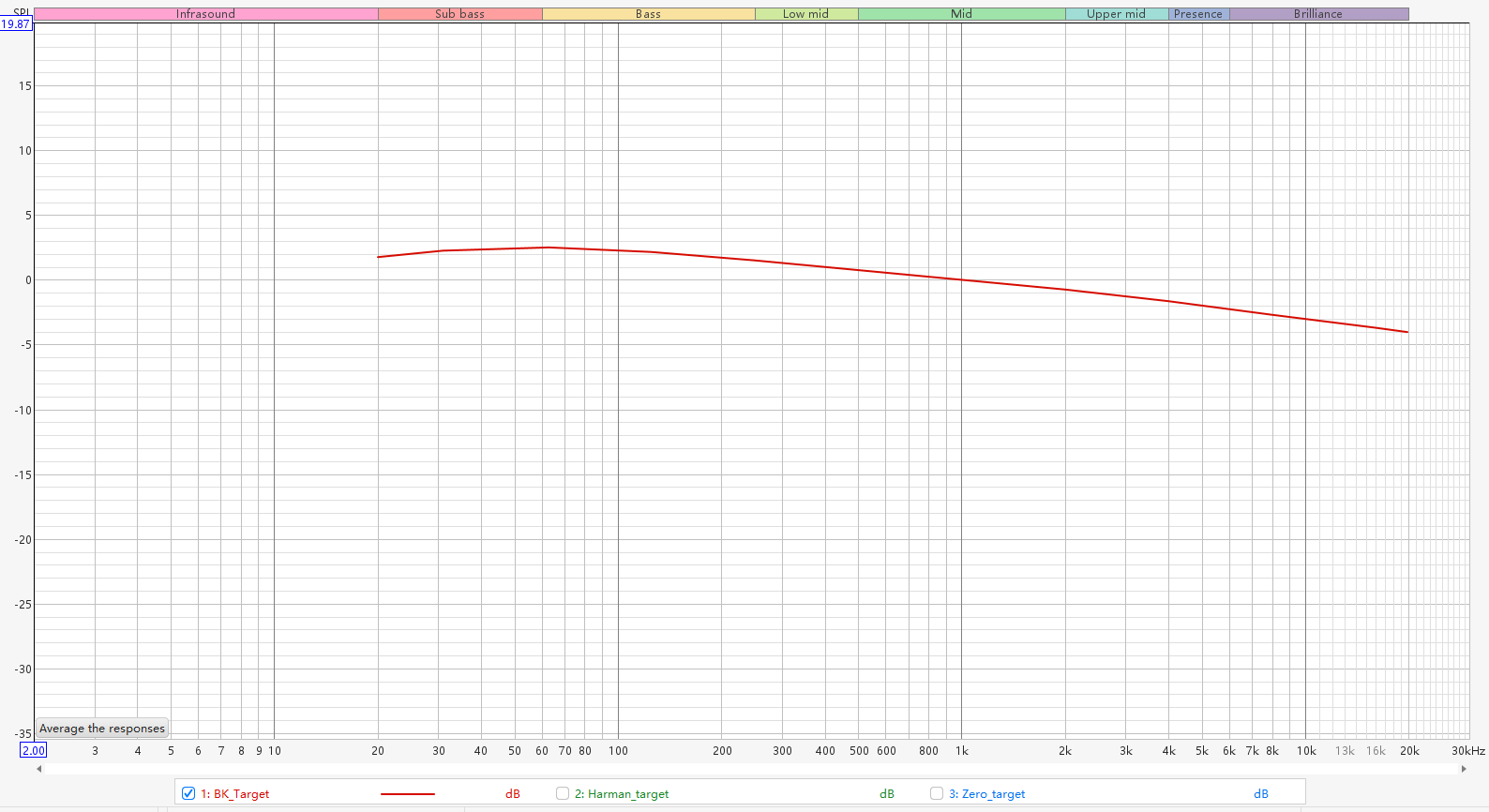
The B&K target curve is a gently downward-sloping frequency response designed to approximate the natural spectral balance of sound in real listening rooms.
Characteristics: A gentle downward slope from low to high frequencies for a natural tonal balance.
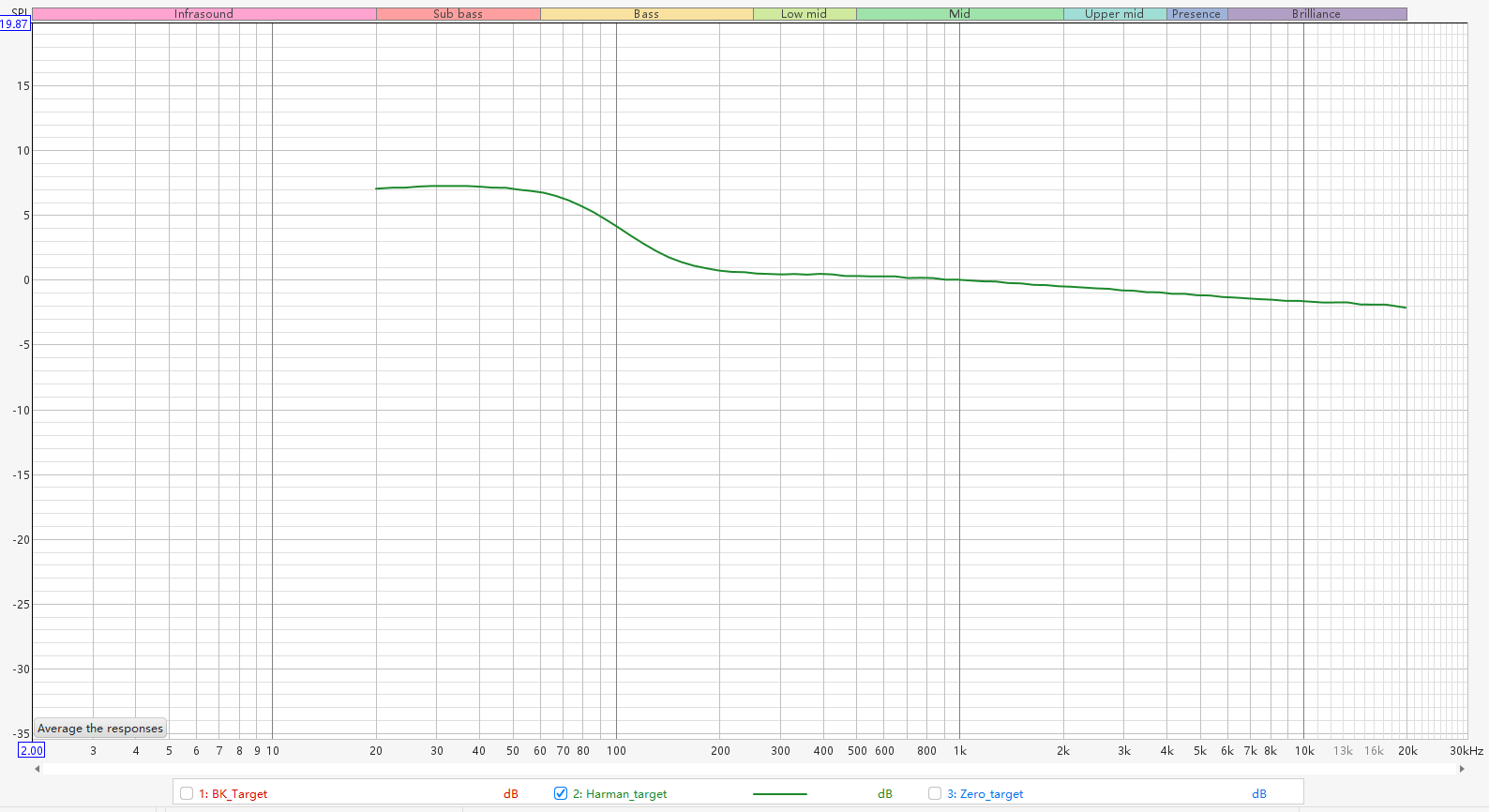
The Harman target curve is a frequency response based on listener preference studies.
Characteristics: Emphasizes bass relative to higher frequencies for a warmer tonal balance.
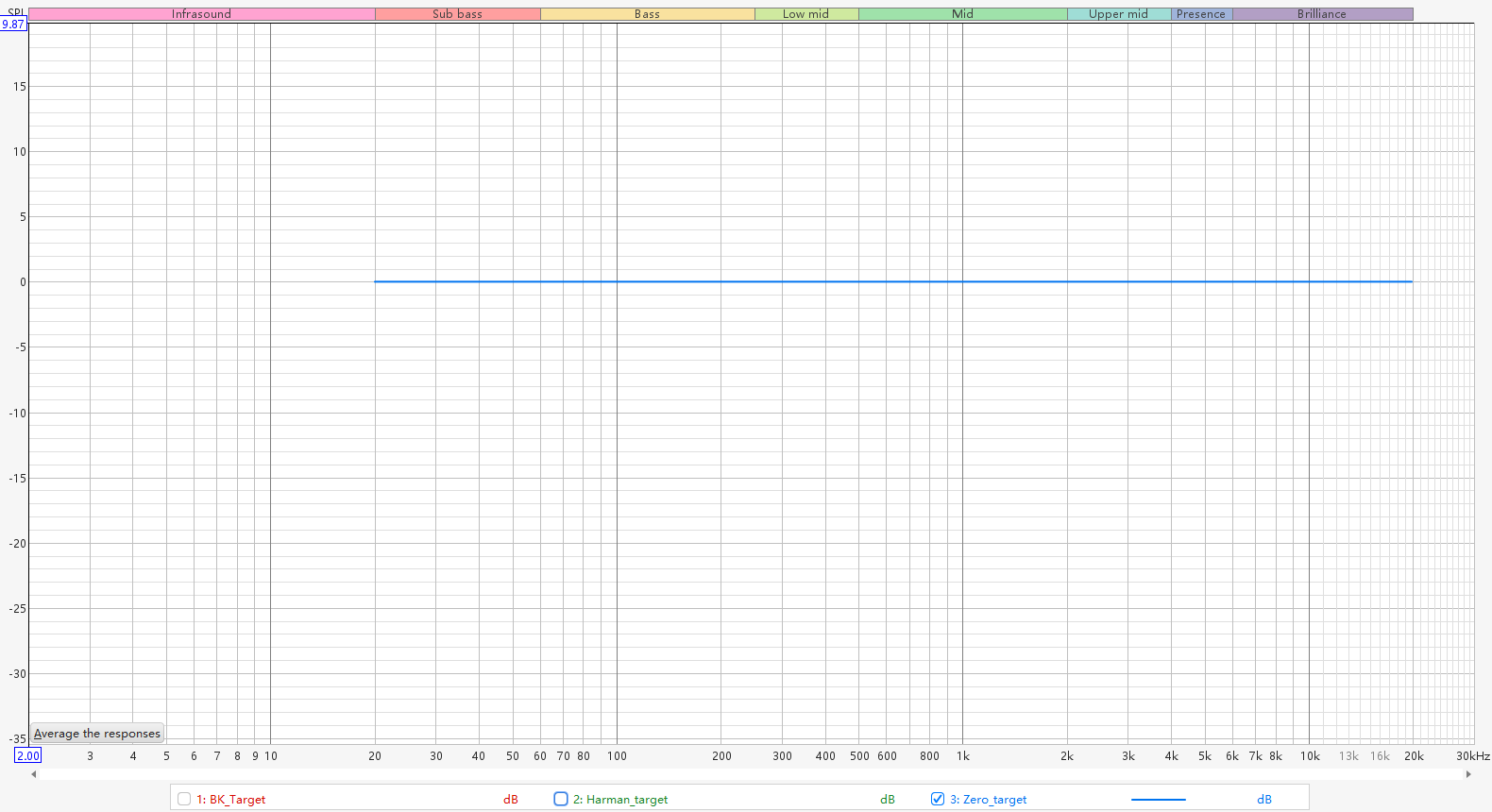
The Flat target curve aims for an even frequency response within the selected correction range.
Characteristics: No intentional bass boost or downward slope. It may sound brighter than a downward-sloping target curve.
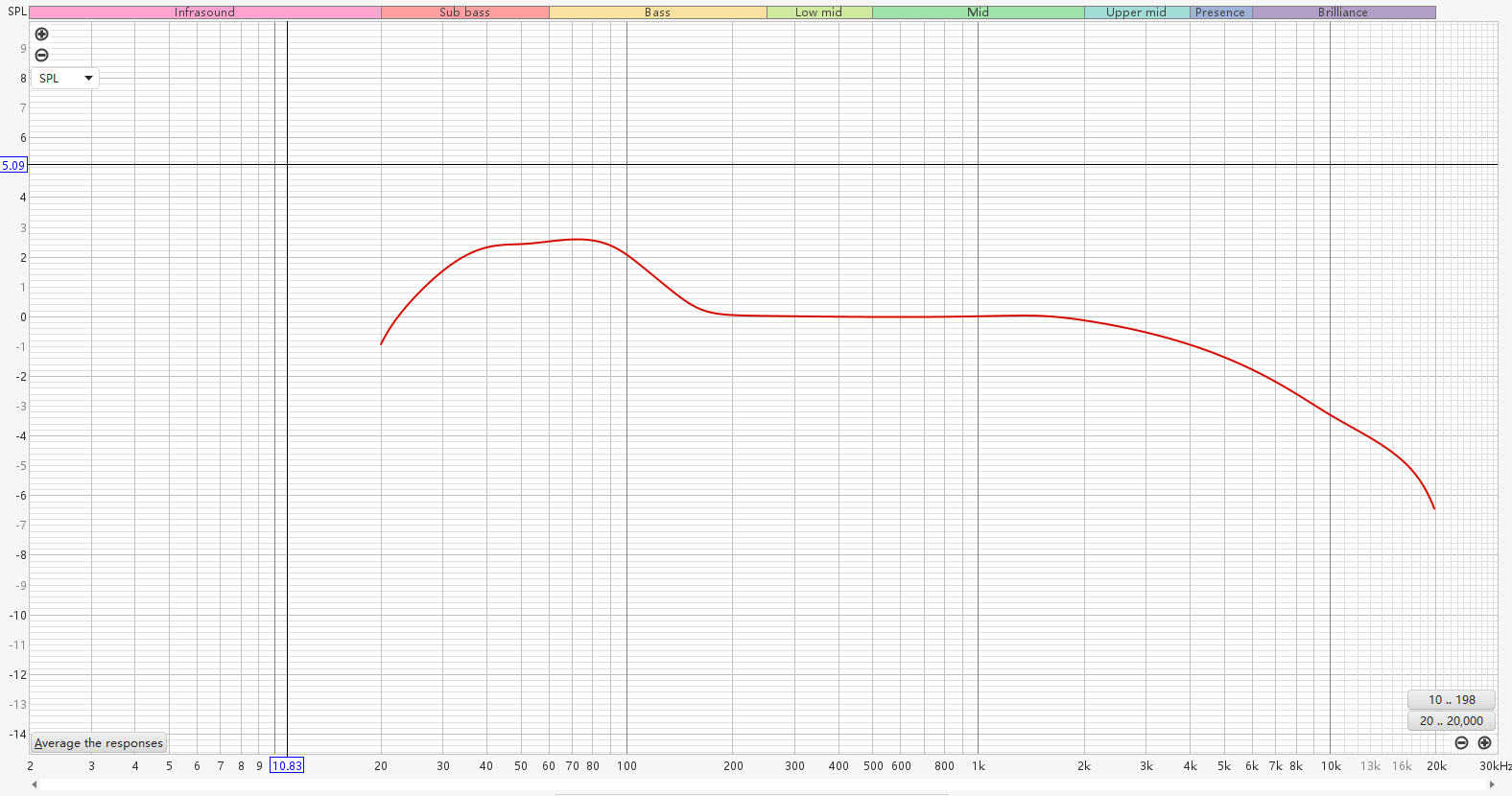
The Music target curve is designed to optimize room correction for music listening by balancing natural frequency response, room acoustics, and listener preferences.
Characteristics: Consistent tonality, clear sound, and a smooth, enjoyable listening experience across different listening environments.
The Auto target curve automatically generates a target curve based on the measured response of your room and speakers, rather than applying a fixed target curve such as B&K or Harman.
Characteristics: Adapts to your actual listening environment and helps preserve the natural sound character of your speakers while reducing unwanted room effects.
A target curve for low-frequency response correction on the WiiM Sub Pro. Select it from the options in Subwoofer RoomFit™.
Frequency Range
This setting defines the frequency range for RoomFit™ frequency-response correction. The default range and whether it can be adjusted vary by product.
Max Gain
This setting adjusts the maximum amount of boost RoomFit™ can apply to any frequency band during frequency-response correction.
A higher value allows more boost when matching the target curve. Excessive boost may cause distortion or unnatural sound.
Min Gain
This parameter sets the maximum amount of cut (reduction) RoomFit™ can apply to any frequency band during frequency-response correction.
Max Q
This setting limits the maximum Q value of the correction filters generated by RoomFit™. Higher Q values correspond to narrower adjustments; lower Q values correspond to broader adjustments.
- A lower Max Q limits correction to broader frequency-response adjustments.
- A higher Max Q allows narrower corrections for specific peaks and dips, but very high Q values may cause ringing.
Non-Boost Mode
This setting limits the combined frequency-response correction to 0 dB or below, helping reduce the risk of distortion and clipping caused by excessive boosting.
Moving Mic Measurement (Beta)
This measurement method captures sound as you move the microphone through the listening area, helping RoomFit™ account for frequency-response differences across multiple positions. For details, see Introducing RoomFit™ Room Correction with MMM (Beta).
Built-in Mic Compensation
This setting compensates for deviations in your mobile device's built-in microphone response for more accurate RoomFit™ measurements.
External Mic Calibration
This setting lets you import a calibration file for an external microphone to achieve more accurate RoomFit™ measurements. For details, see Using an External Microphone for RoomFit™ Room Correction.
Smoothing
This setting smooths small fluctuations in the frequency response to emphasize overall trends. Stronger smoothing hides more detail; lighter smoothing retains more detail.
- 1/3 Octave: Strong smoothing. Shows overall trends, hides fine details.
- 1/6 Octave: Balanced smoothing. Good mix of clarity and detail.
- 1/12 Octave: Light smoothing. Reveals more detail but may look uneven.
- Variable: Automatically adjusts smoothing depending on frequency. Light smoothing on bass for detail, heavier on treble for readability.
- Psychoacoustic: Uses smoothing designed to more closely reflect perceived frequency response.
- ERB: Uses frequency-dependent smoothing based on the ear's Equivalent Rectangular Bandwidth (ERB).
Subwoofer Calibration
On devices that show Subwoofer Calibration in RoomFit™ Settings, use this option to configure subwoofer participation in the RoomFit™ process. Availability depends on your device and Sub Out configuration.
- This setting is available only when Sub Out is enabled on a WiiM Amp, WiiM Amp Pro, WiiM Amp Ultra, or WiiM Ultra.
- Review the subwoofer connection, crossover frequency, and RoomFit™ frequency range using the setup guide for your WiiM device.
Default Settings by Product
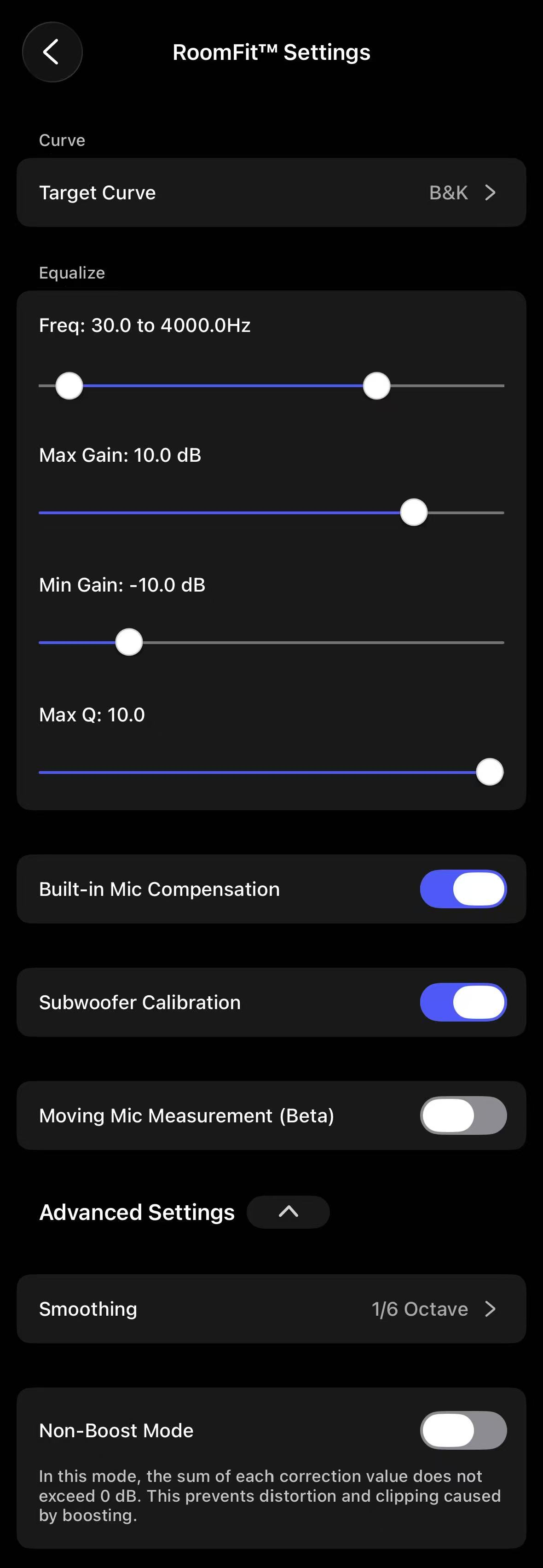
WiiM Ultra/Amp/Amp Pro/Amp Ultra/Pro/Pro Plus/Mini
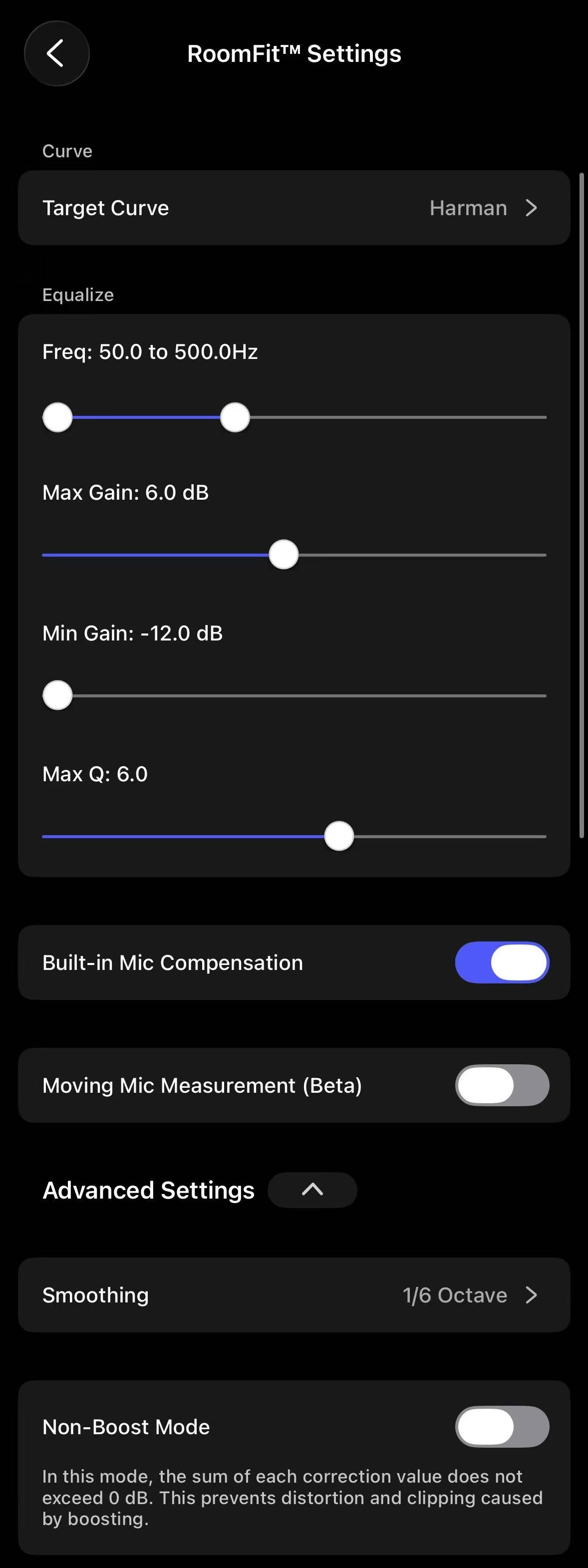
WiiM Sound / WiiM Sound Lite
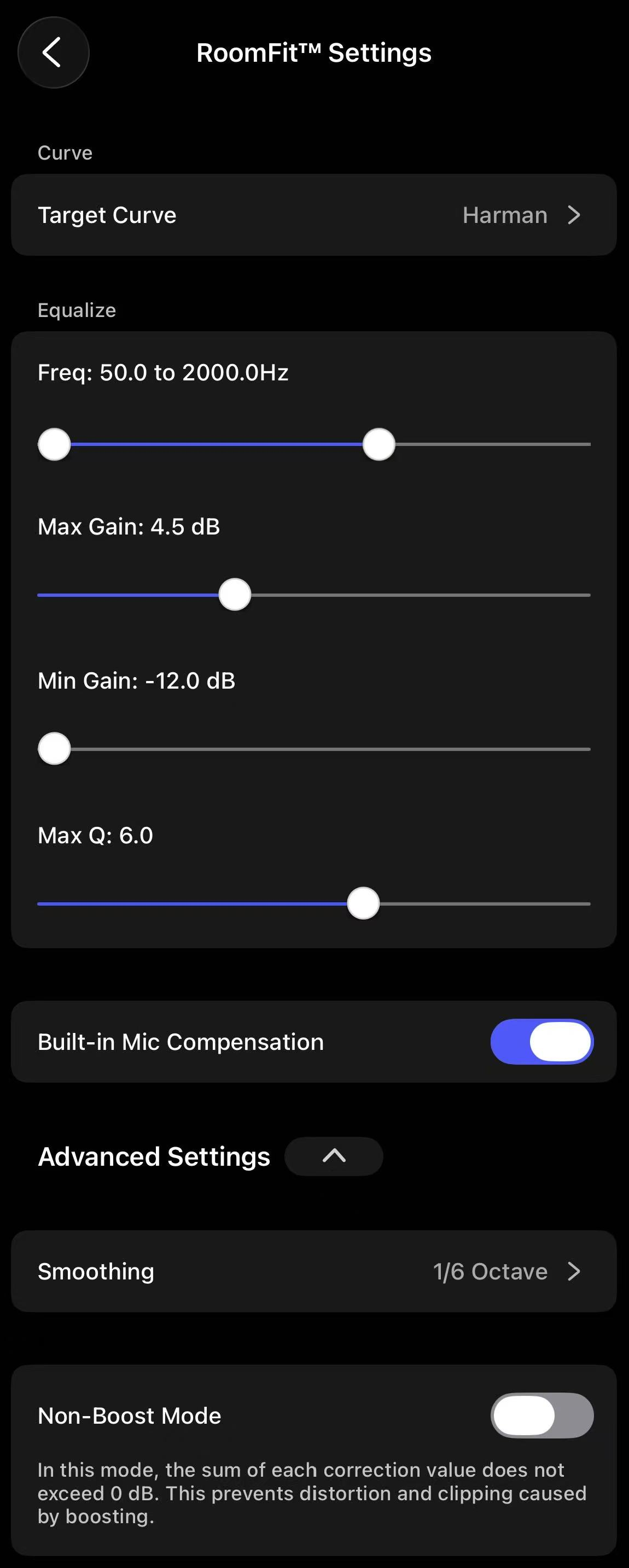
WiiM Bar
WiiM Sub Pro
Related Guides
For recommended settings and practical advice, see A Practical Guide to RoomFit™ Room Correction for Enhanced Sound Quality.