
TABLE OF CONTENTS
Overview
The WiiM Sub Pro supports built-in RoomFit™ Room Correction to optimize bass performance according to your room's acoustics.
RoomFit™ Room Correction improves bass performance by compensating for your room's acoustics. It fine-tunes the WiiM Sub Pro's output using advanced audio processing to reduce boomy, muddy, or uneven bass caused by reflections, furniture, and placement. The result is tighter, clearer, and more balanced bass throughout your listening space.
Preparations and Instructions
Before Calibration
- Avoid obstructions around the WiiM Sub Pro.
- Set your WiiM Sub Pro's volume to a moderate level.
- Close doors and windows.
- Keep the room as quiet as possible.
During Calibration
- ALWAYS remove the protective case from your phone.
- ALWAYS hold the phone as far away from your body as possible.
- ALWAYS point the microphone towards the speaker you are currently measuring.
- ALWAYS avoid obstructions between the microphone and the speaker.
- ALWAYS place the microphone at ear level (if you sit while listening, use the height of your ears when seated).
- Microphone Placement: Ensure the microphone, the listener's ears, and the speaker's acoustic center are approximately at the same height.
- Use an external microphone when available for more accurate calibration results. For details, see Using an External Microphone for RoomFit™.
Step-by-Step Guide
| Steps | Details |
|---|---|
| 1. Open WiiM Home app. | Open the WiiM Home app on your mobile device. |
| 2. Open RoomFit™. | Go to the Devices tab > Open the WiiM Sub Pro settings > Select Subwoofer RoomFit™. Tip: Tap the  icon to directly open the WiiM Sub Pro settings. icon to directly open the WiiM Sub Pro settings.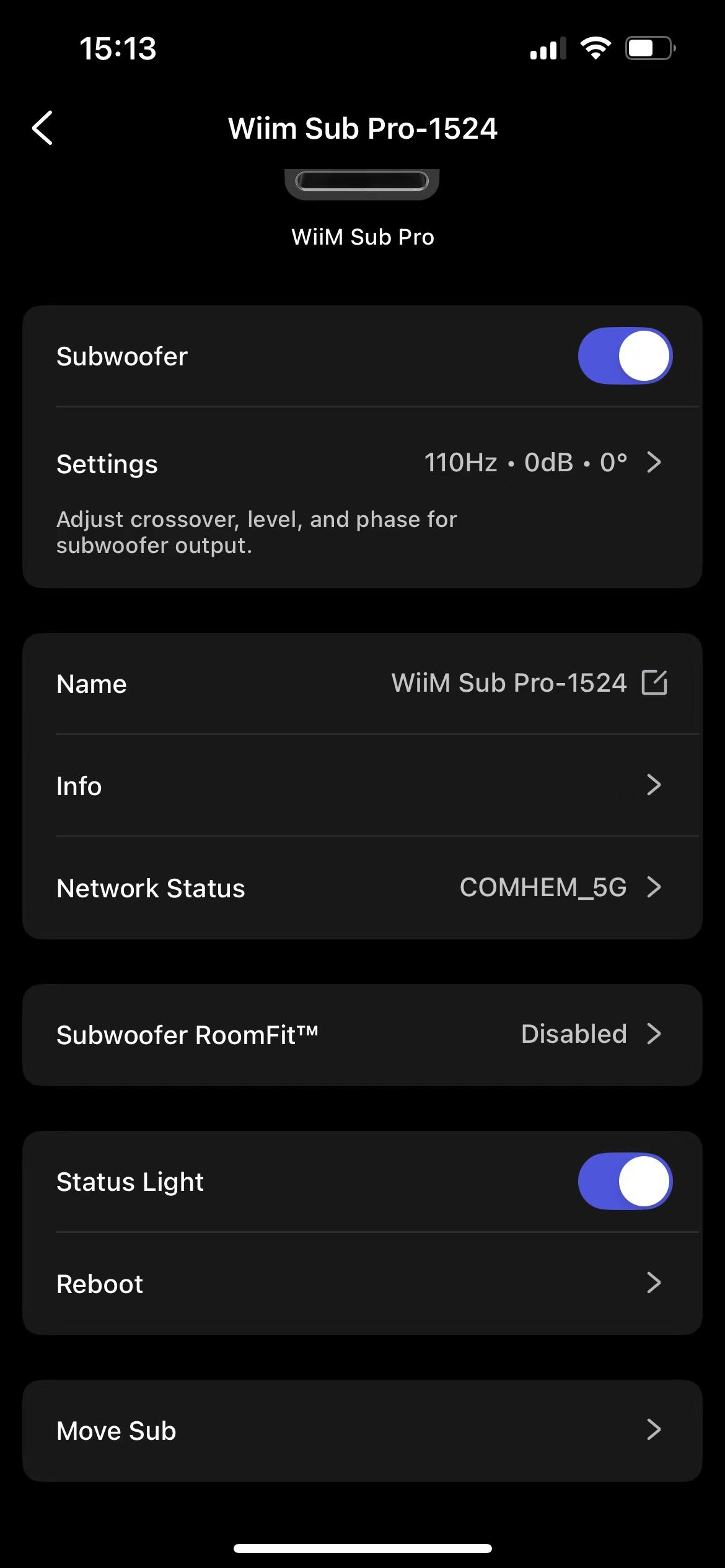 |
| 3. Configure parameters. | Tap the 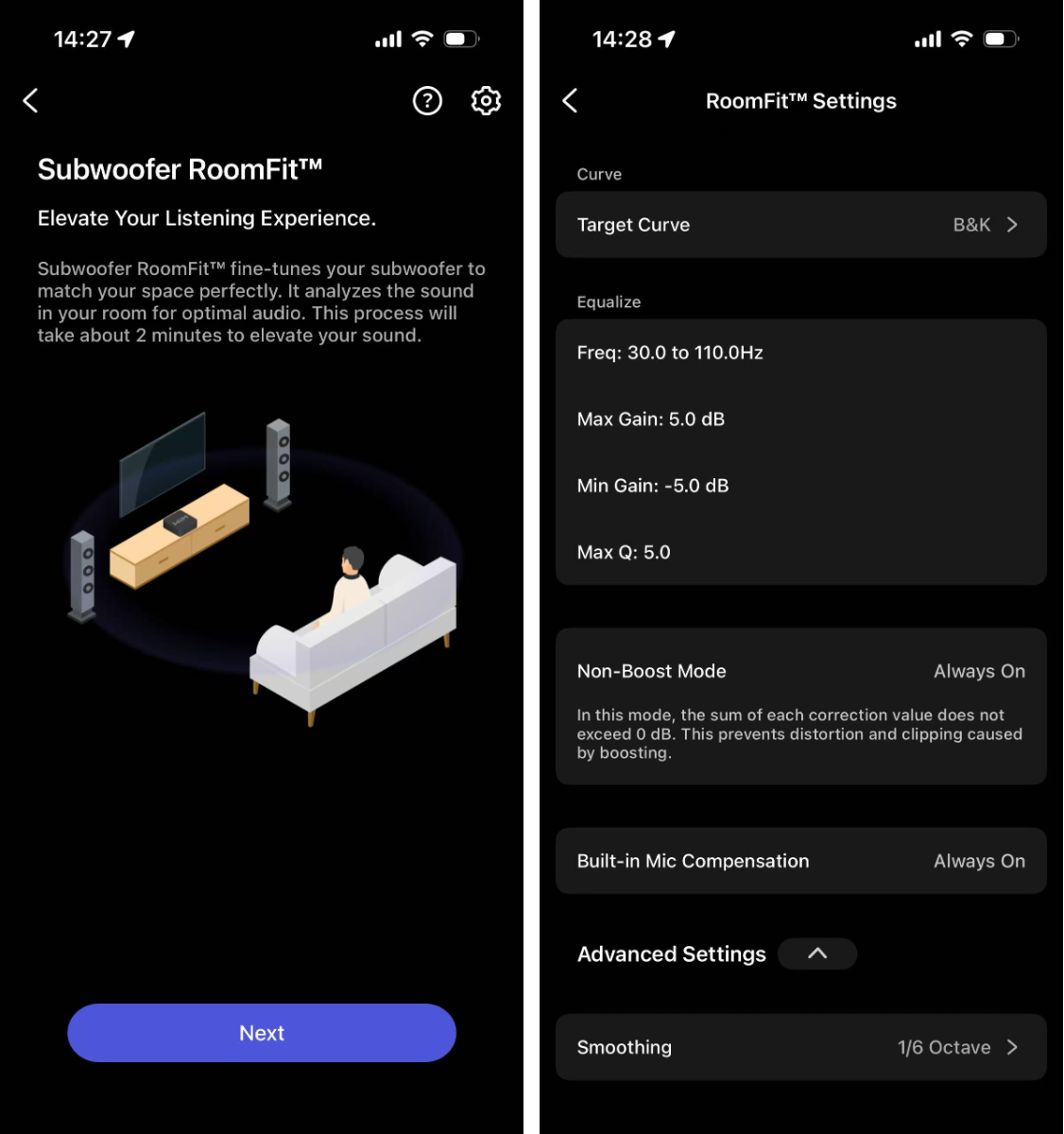 Adjust the following settings to match your preferences:
Note: Other settings are fixed and cannot be modified. |
| 4. Start RoomFit™ process. | Tap Next to start the RoomFit™ process. Tip: Follow the prompt to rotate your phone 180°, so the bottom microphone faces the speakers for accurate measurement. 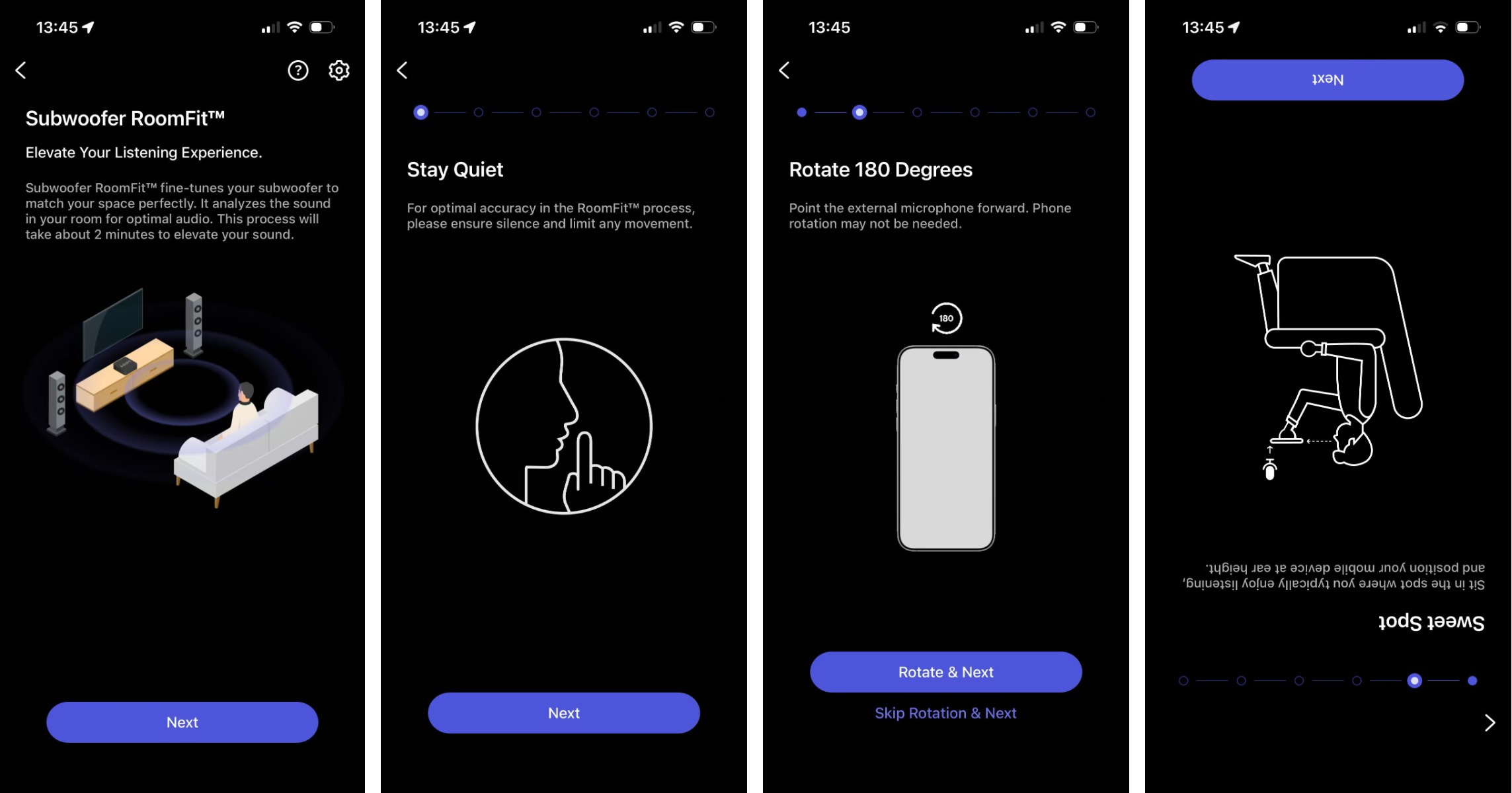 |
| 5. Audio check. | Tap Play Sound to perform an audio check. 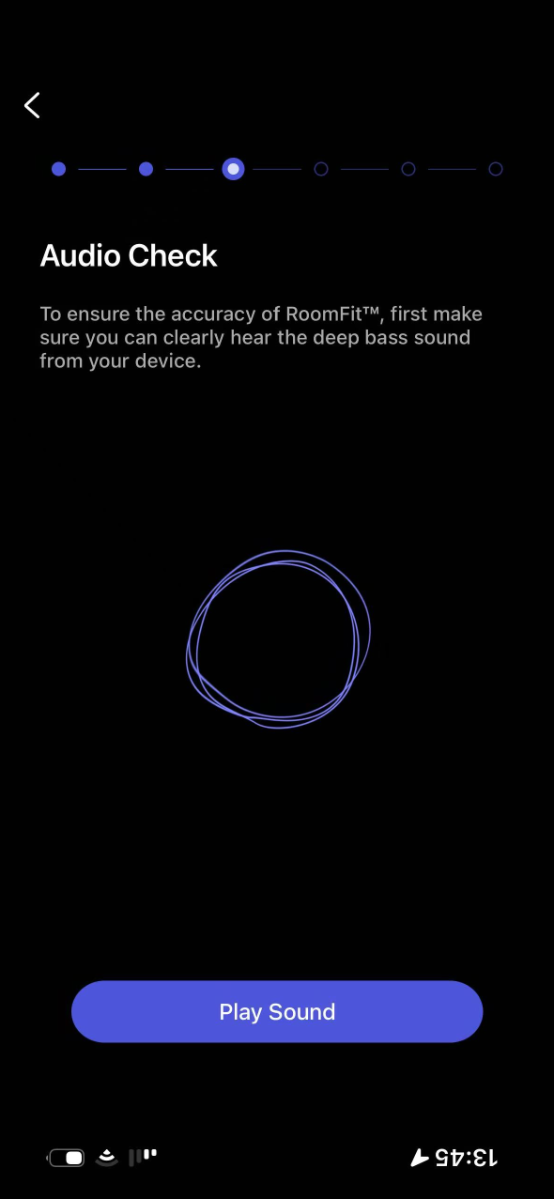 |
| 6. Start tuning. | Tap Start Tuning to begin the acoustic measurement, then evaluate the results from the curves below:
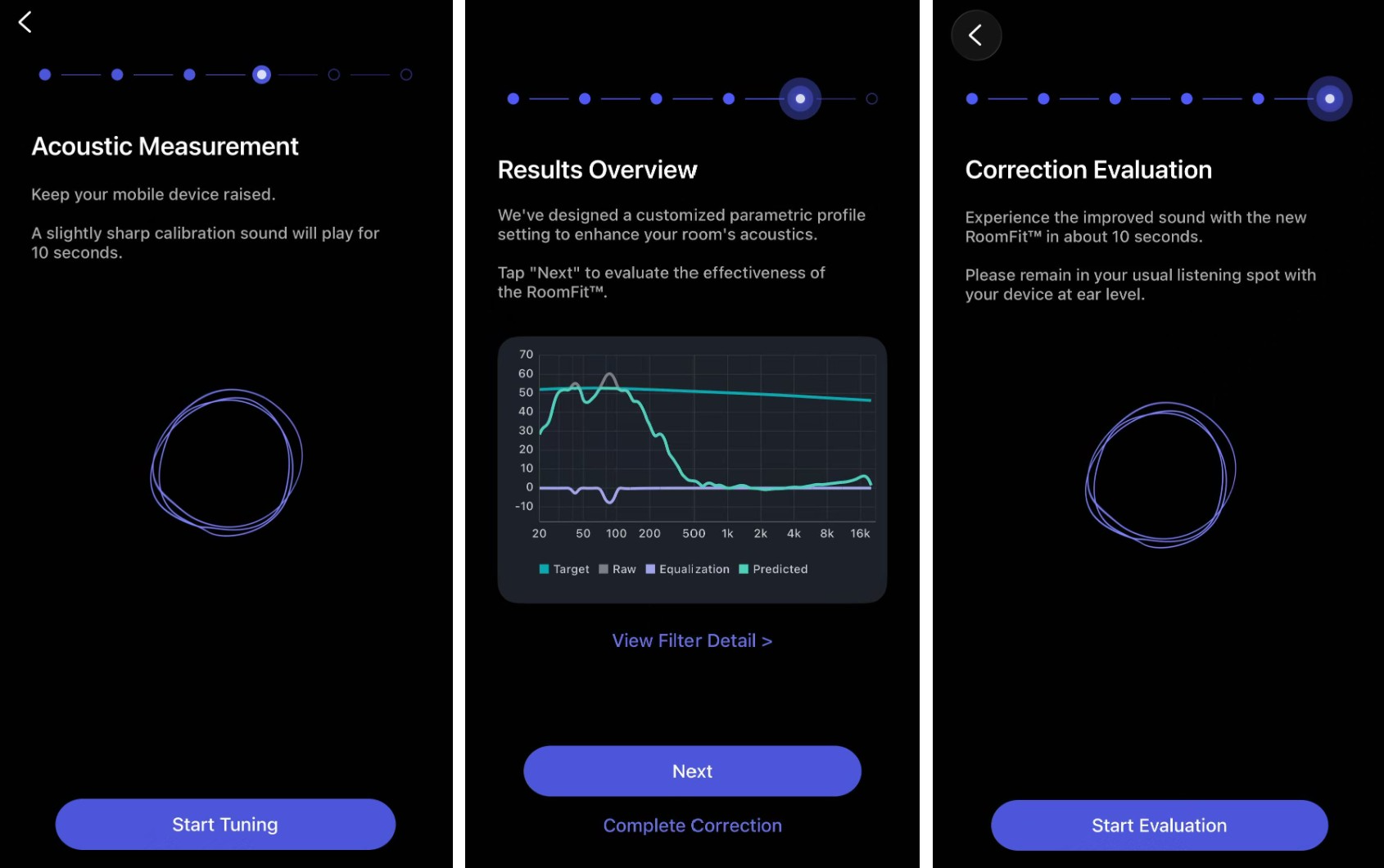 |
| 7. Evaluate results. | Review the actual RoomFit™ result from the curves below:
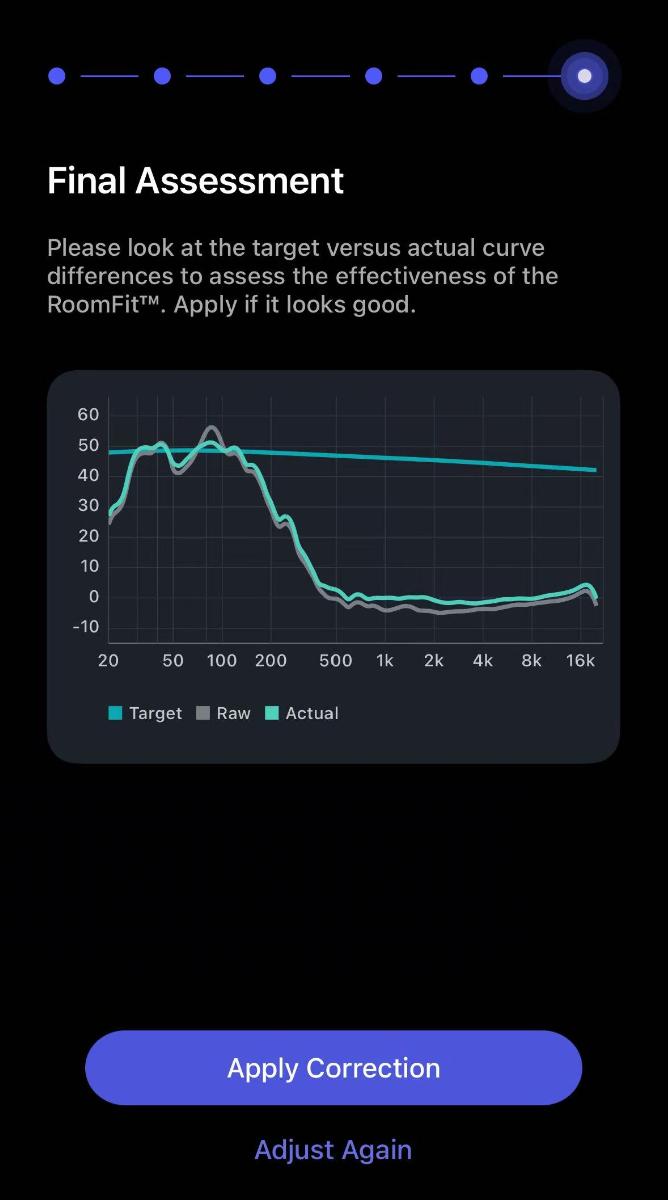 If the Actual curve closely matches the Target curve within the adjustable range, the RoomFit™ result is effective. Tap Apply Correction to proceed. If there are large differences, tap Adjust Again to re-run RoomFit™. |
| 8. Save results. | Tap Save Profile to save the RoomFit™ results as a custom profile. Alternatively, tap Skip to save into the Auto profile. 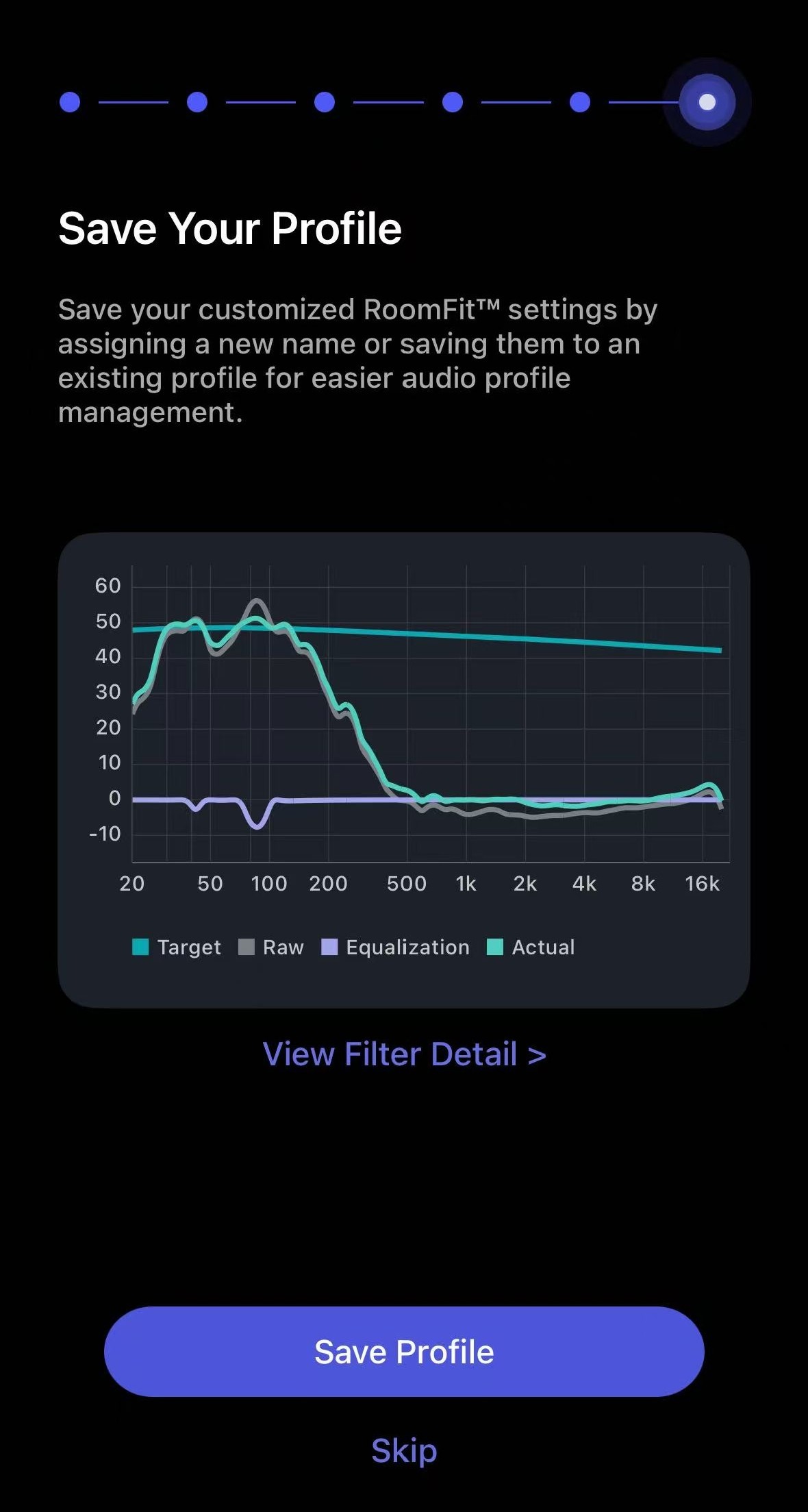 |
| 9. Finish. | Tap Done to finish the RoomFit™ process. 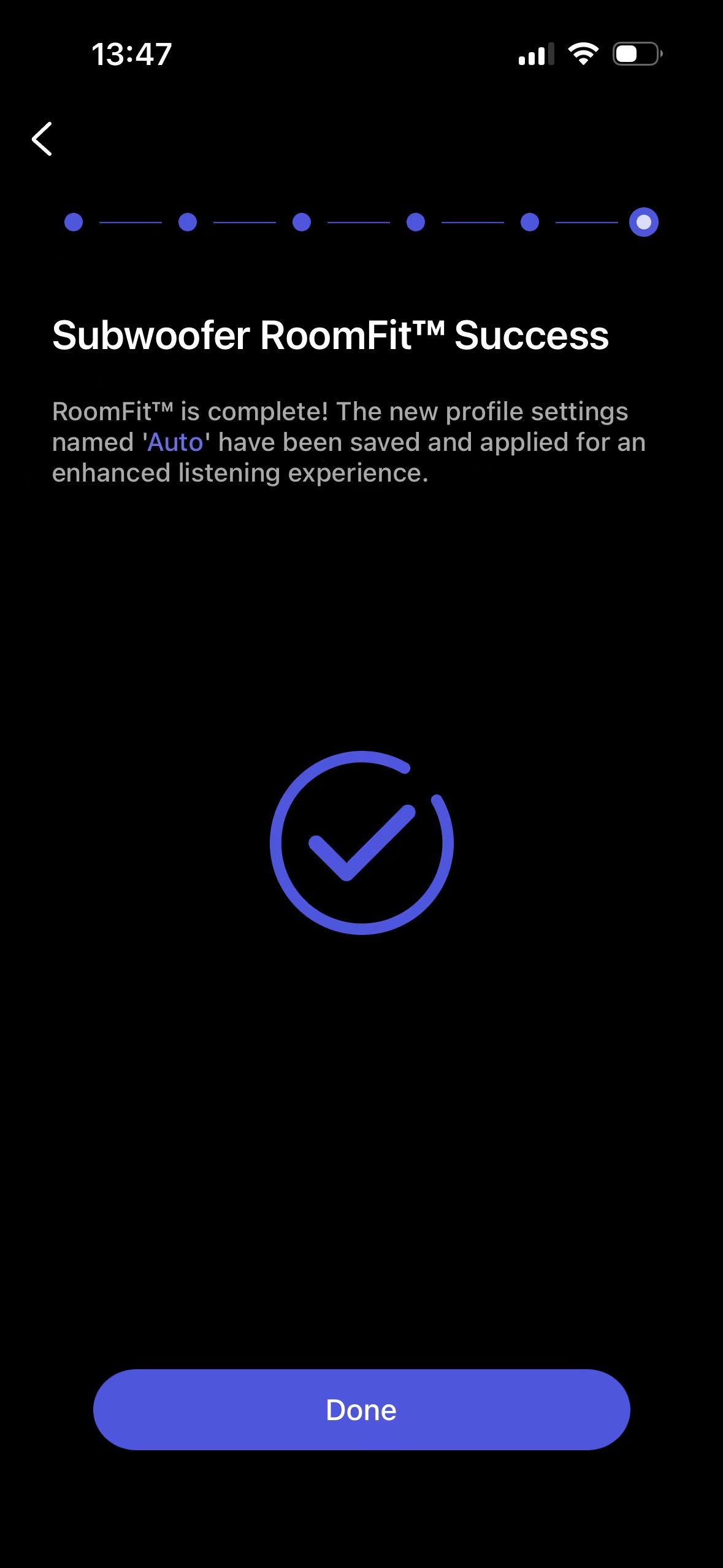 |
 icon to open RoomFit™ Settings.
Tips
- Troubleshooting: If you are experiencing issues during the RoomFit™ process, refer to Troubleshooting: How to Resolve Common Errors in RoomFit™ Room Correction.
- External microphone: You can use an external microphone for RoomFit™ to enhance calibration accuracy. For details, see Using an External Microphone for RoomFit™ Room Correction.
- RoomFit™ Parameters and Practical Guide: See Introducing RoomFit™ Settings and A Practical Guide to RoomFit™ Room Correction for Enhanced Sound Quality.