
TABLE OF CONTENTS
This tutorial will walk you through the step-by-step setup guide to get your AudioPro A10 MKII WiiM Edition up and running.
What You'll Need
To integrate the AudioPro A10 MKII WiiM Edition with your WiiM system, you'll need:
- An AudioPro A10 MKII WiiM Edition
- A smartphone or tablet
- Wi-Fi connection
- (Optional) An external audio source
Step-by-Step Setup Guide
1. Power on AudioPro A10 MKII WiiM Edition
Connect the AudioPro A10 MKII WiiM Edition to a power source using the provided power cable. It will automatically power on and enter Wi-Fi setup mode.
If the device doesn't enter Wi-Fi setup mode automatically, simply press the Reset button on the back panel to trigger it manually.
2. Download the WiiM Home App
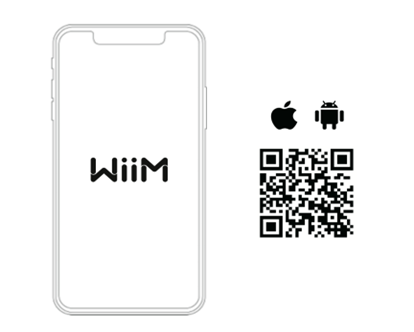
Use your smartphone or tablet to scan the following QR code to download the WiiM Home app. The app will be used to set up and configure the AudioPro A10 MKII WiiM Edition.
3. Set Up AudioPro A10 MKII WiiM Edition through the WiiM Home App
Follow these steps to set up the device:
- Open the WiiM Home app on your mobile device.
- When the Set Up pop-up appears in the app, tap it to start the setup.

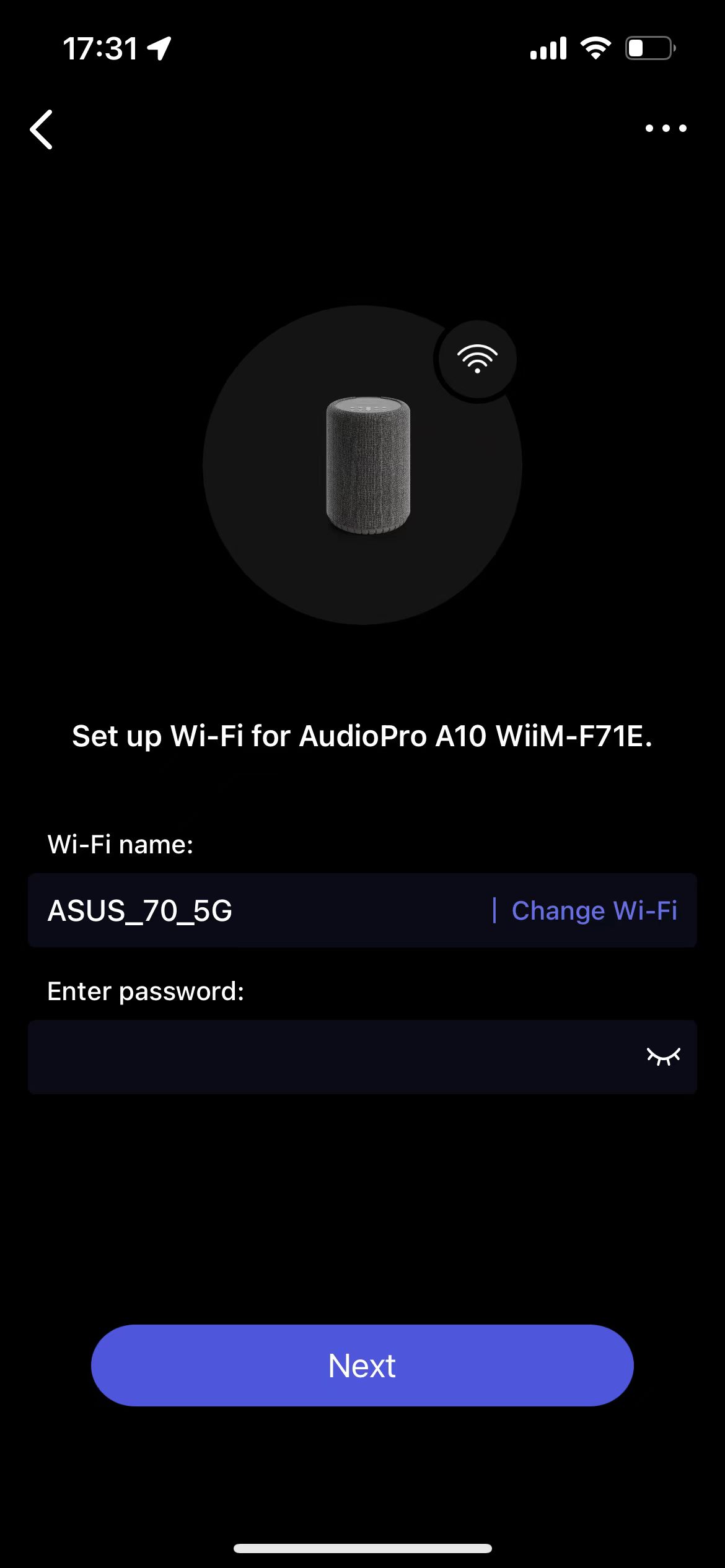
- Connect the AudioPro A10 MKII WiiM Edition to the same Wi-Fi network as the WiiM Home app.
- Check and update the firmware.

- Rename the AudioPro A10 MKII WiiM Edition.

- Enable Google Cast or add the device to Apple Home based on your preferences.

4. Play Music and Enjoy Deep Bass
Now, stream your favorite music and radio stations through the WiiM Home app or your preferred apps over Wi-Fi or Bluetooth, and enjoy seamless, high-quality playback.