
TABLE OF CONTENTS
- Overview
- Scenario 1: WiiM Device Not Found During Wi-Fi Setup
- Scenario 2: WiiM Device Not Found After Wi-Fi Setup
- 1. Initial Checks
- 2. Check for the Same Network
- 3. Avoid Guest Networks
- 4. Restart Devices
- 5. Check and Disable VPN
- 6. Replace the Power Adapter
- 7. Reset Mobile Device Network Settings
- 8. Check Wi-Fi Router Settings
- 9. Optimize Wi-Fi Signal and Performance
- 10. Verify WiiM Device IP and Connectivity
- 11. Use Ethernet (If Supported) or a Hotspot to Update Firmware
- 12. Assign a Static IP Address
- 13. Check Solutions for Specific Routers
- 14. Reach Out to WiiM Support
- Tips
Overview
If you cannot find your WiiM device in the WiiM Home app, choose the section below based on whether the issue occurs during or after Wi-Fi setup.
Scenario 1: WiiM Device Not Found During Wi-Fi Setup
If you are trying to connect your WiiM device to a Wi-Fi network using the WiiM Home app but do not see a Set Up prompt, follow the steps below.
1. Initial Checks
- Power Status: Ensure your WiiM device is turned on.
- Setup Mode:Check that your WiiM device is in setup mode: the LED indicator should be flashing white, or the touchscreen (if available) should display the setup prompt.
Tip: If your device is not in setup mode, press and hold the Play button on your WiiM device for 3 seconds to enter setup mode.
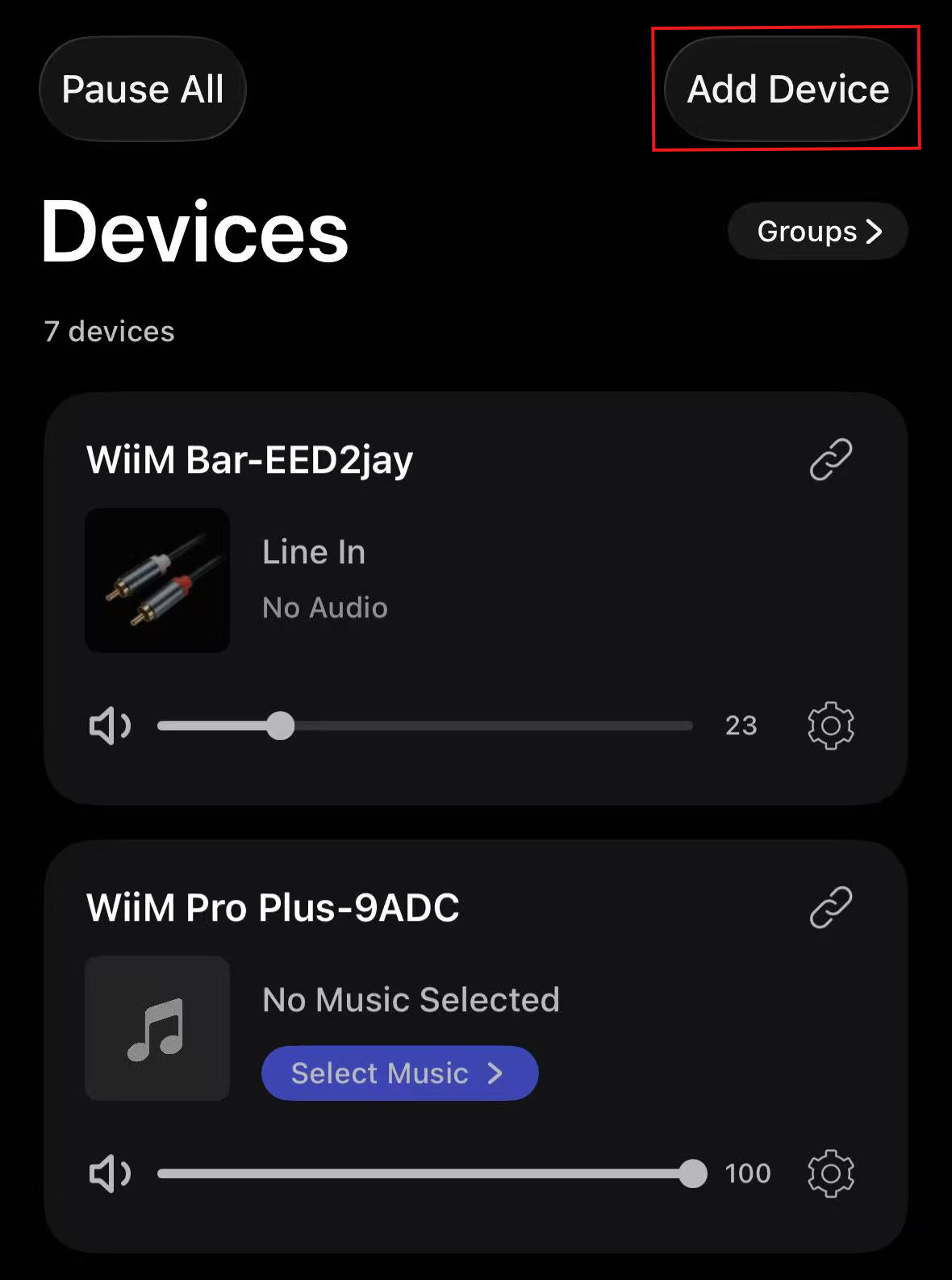
- WiiM Home App: Go to Devices > Add Device and check for the Set Up prompt. Make sure you are using the latest version of the app.
2. Check Bluetooth Settings
Make sure Bluetooth is turned on in your mobile device's settings and keep your mobile device close to your WiiM device.
3. Try Wi-Fi Setup via AirPlay
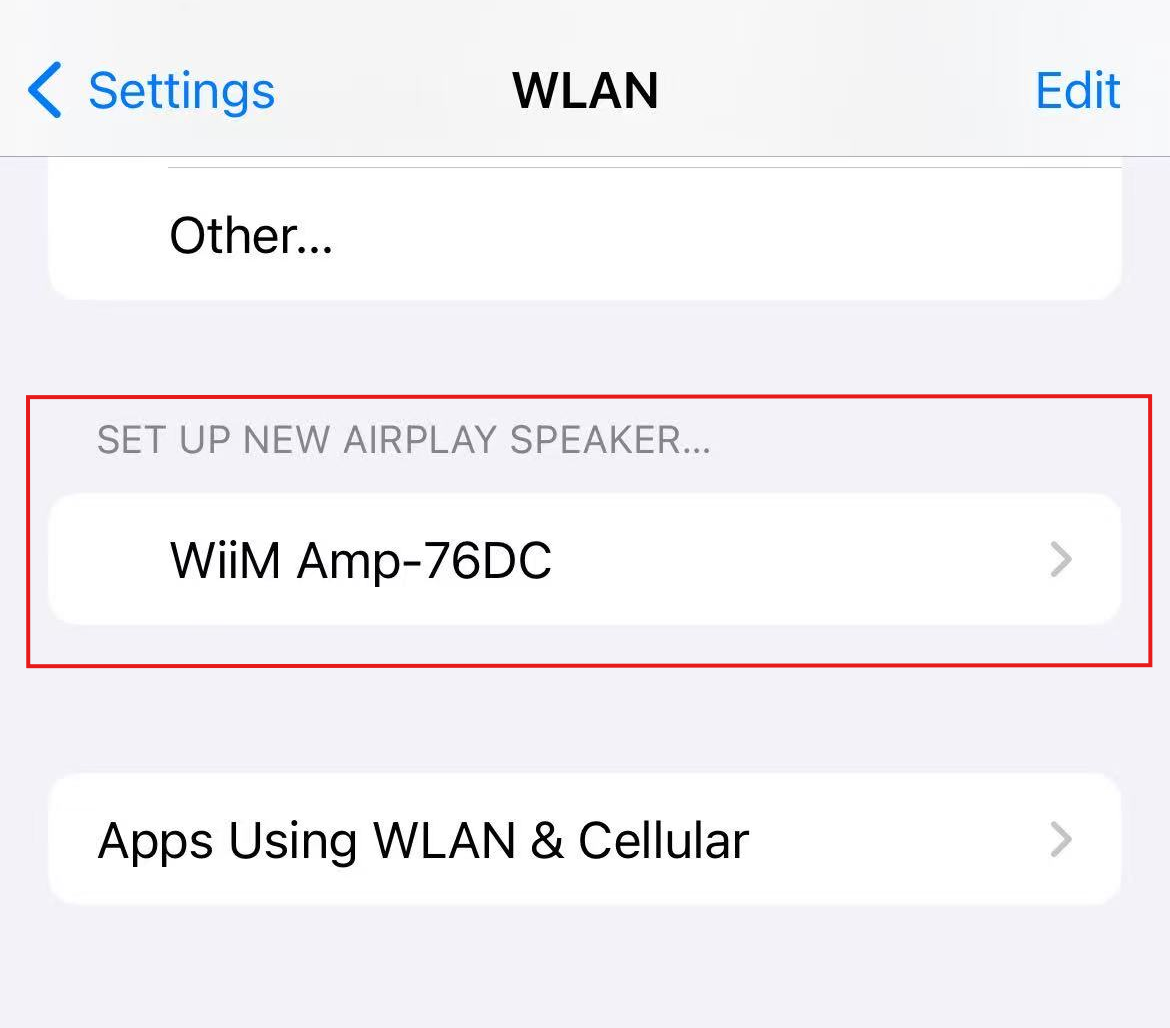
If your WiiM device supports AirPlay 2, try connecting it to Wi-Fi using AirPlay setup on an iPhone or iPad.
Open Settings > WLAN, select your WiiM device under SET UP NEW AIRPLAY SPEAKER, and follow the onscreen instructions.
To check whether your device is supported, see List of WiiM Devices Supporting AirPlay 2.
4. Contact WiiM Support
If the issue persists, go to More > Feedback and Tickets in the WiiM Home app to contact WiiM Support.
Scenario 2: WiiM Device Not Found After Wi-Fi Setup
If your WiiM device is connected to Wi-Fi but does not appear in the WiiM Home app, follow the steps below to resolve the issue.
1. Initial Checks
- Power Status: Ensure your WiiM device is turned on.
- LED Indicator Status: Verify that the LED indicator on your WiiM device is solid white, indicating that your WiiM device is connected to the Wi-Fi network.
- WiiM Home App: Close and reopen the WiiM Home app. Make sure that you are using the latest version of the WiiM Home app.
2. Check for the Same Network
Ensure your mobile device is connected to the same Wi-Fi network as your WiiM device.
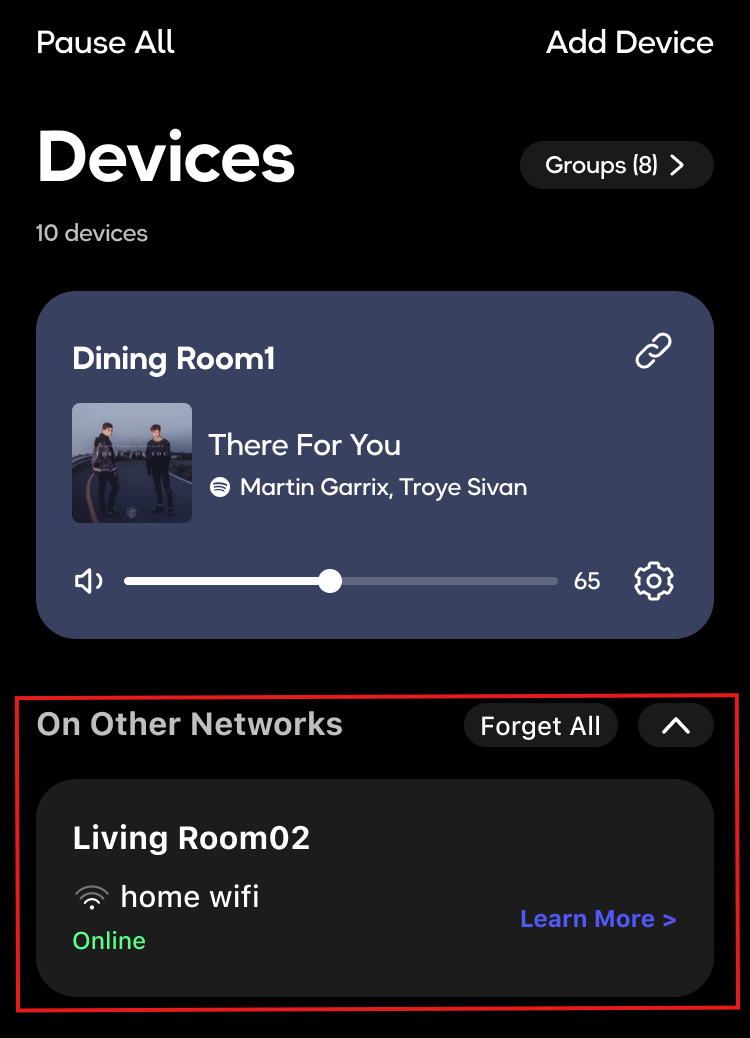
If two routers in your home use the same Wi-Fi network name, your WiiM device and mobile device may connect to different networks. Go to Devices > On Other Networks in the WiiM Home app to see if your WiiM device is listed there.
3. Avoid Guest Networks
Ensure that neither your mobile device nor your WiiM device is connected to a guest network, such as a Wi-Fi network with an SSID containing the word 'guest'.
4. Restart Devices
Restart your Wi-Fi router, WiiM device, and your mobile device. This can help resolve temporary connection issues.
5. Check and Disable VPN
Open Settings on your mobile device and check whether VPN is disabled.
If the VPN setting is enabled as shown in the example below, toggle it off to disable the VPN.

6. Replace the Power Adapter
Try using a different power adapter. For example, ensure the new adapter meets the 5 V / 2 A specification required for the WiiM Mini, WiiM Pro, and WiiM Pro Plus.
7. Reset Mobile Device Network Settings
If you notice erratic Wi-Fi behavior, consider resetting your mobile device's network settings.

8. Check Wi-Fi Router Settings
- Disable AP Isolation / Wi-Fi Isolation: Ensure that AP isolation (or Wi-Fi isolation) is turned off, so devices on the same network can communicate.
- Enable Multicast / IGMP: Ensure that multicast and IGMP (Internet Group Management Protocol) settings are enabled to support proper device discovery and streaming.
- Enable UPnP: Ensure that Universal Plug and Play (UPnP) is enabled on your router. This feature facilitates the automatic discovery and configuration of network devices, thereby enhancing compatibility and connectivity.
- Potential Blocks: Review your router for firewall settings or parental controls that might restrict the WiiM device.
9. Optimize Wi-Fi Signal and Performance
- Ensure the WiiM device is placed close to your Wi-Fi router to maintain a strong Wi-Fi signal. Weak signals can cause connection failures.
- If using a dual-band router, try connecting your WiiM device to the 2.4 GHz band, which generally provides better coverage and a stronger signal through walls than the 5 GHz band.
Tip: If both bands share the same Wi-Fi network name, you need to separate them. For instructions, see Separating the 5 GHz and 2.4 GHz bands on your router.
10. Verify WiiM Device IP and Connectivity
- Check your WiiM device's IP address
Log in to your router's admin panel and navigate to the connected devices list. Locate your WiiM device and note its assigned IP address. - Test connectivity
Use a computer on the same network to perform a ping test on the identified IP address. A successful ping confirms that the device is active and communicating on the network.
11. Use Ethernet (If Supported) or a Hotspot to Update Firmware
If your WiiM device supports Ethernet, try connecting it directly to your router using an Ethernet cable.
If your device doesn't support Ethernet, create a mobile hotspot and connect your WiiM device to the hotspot. For detailed instructions, see How to Connect Your WiiM Device to a Mobile Hotspot.
Once your WiiM device is connected via Ethernet or hotspot, upgrade it to the latest firmware. After the upgrade, try to reconnect to your router via Wi-Fi.
12. Assign a Static IP Address
Try to configure a static IP address for your WiiM device in your Wi-Fi router's settings to avoid IP conflicts. For more information on fixing IP conflicts, see How to Fix IP Address Conflict.
13. Check Solutions for Specific Routers
Some Wi-Fi routers (e.g., BT Smart Hub, Eero, and Netgear Nighthawk) have known discovery issues. Please review the solutions to specific router issues to see if they apply to your router.
14. Reach Out to WiiM Support
If the issue continues, please go to More > Feedback and Tickets in the WiiM Home app to send us feedback. Our support team will review your feedback.
Tips
Networks are intricate, with numerous variables affecting connectivity. A seemingly minor router or switch setting might be causing issues. Regularly updating software on all associated devices can address and prevent known complications.